
 Rigel of Midgard
Customization and client
AutoBuff: renew self buffs
Prepare up to five actions to renew personal buffs and learn to activate or clear their slots.
Prepare a row
Open AutoBuff from the menu. It has five rows with status, name, action and activation.
- Drag an item or skill into a row.
- Assigning an action enables the row. Use its button to toggle ON/OFF.
- Repeat for the states you want to maintain.
Only learned self-targeting skills at a valid level are accepted. Skills requiring another target or a ground position remain inactive.
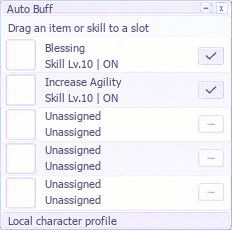 Illustrative view; sample states are not a guaranteed buff list.
Renewal and limits
The panel checks active statuses and attempts to renew a missing buff. If any status icon listed in its rule is present, it does not use the action again. If a blocking status listed in that rule is present, it waits until that status disappears.
You need the item in your inventory or the skill learned at the selected level, along with its usual requirements: SP, consumables and map restrictions. AutoBuff uses the action selected in the row; it does not automatically switch to another equivalent item from the catalog. After an attempt, it waits at least three seconds before retrying that row if the status is still missing. An attempt does not guarantee that the server accepts the action.
For example, assign a compatible buff potion and leave it ON. While its status is active, AutoBuff does not consume another potion to renew it. When the status disappears, it tries to use the potion again. Set that row to OFF to stop consumption, even when the window is closed.
Add more buffs to the catalog
The catalog maps items and skills to their statuses. Adding a rule lets you assign that action to one of the five rows; it does not add rows or grant skills or items.
- Open AutoBuff with a character so the client creates the initial catalog if it does not exist yet.
- Close the client and back up
savedata/rigel_autobuff.toml, inside the client folder containingfaraday.dll. - Open the file in a text editor. Keep a single
version = 1line and add one[[buff]]block per status. If a rule already exists, extend its lists instead of duplicating it. - Save, restart the client and drag the item or skill into a row. Check ON and test one action first.
This block is part of the initial template; do not paste it again if it is already in your file:
[[buff]]
efst = "EFST_ATTHASTE_POTION2"
icon_ids = [37]
item_ids = [656, 12232, 14510, 12242]
Each field has a specific purpose:
| Field | What to enter |
| --- | --- |
| efst | Status label. It is a readable name, without automatic ID lookup. |
| icon_ids | Numeric client status icon IDs. Any listed icon means the buff is active. At least one is required. |
| item_ids | IDs of items that produce this status. Several equivalent items can be listed. |
| skill_ids | IDs of skills that produce this status. The level is selected when dragging the skill, not here. |
| block_icon_ids | Optional list of status icons that prevent renewal while present. |
For a new rule, use IDs confirmed for your client version; item, skill and icon IDs are different. Do not guess an icon ID from its name or skill ID. The template illustrates the format; it does not guarantee that all listed items are available or usable by your character.
Each rule needs icon_ids and at least item_ids or skill_ids. Up to 64 rules are supported, with up to 16 IDs per list. Do not repeat IDs within a list, efst names across rules, or the same item or skill across different rules. An invalid catalog leaves actions without usable rules: restore your backup or correct the file and restart.
If a buff does not work
- Dragging does not assign it: check that its ID is in
item_idsorskill_idsand that you restarted after editing the catalog. - No catalog: the saved selection no longer has a matching rule. Correct the catalog or clear and reassign the row.
- Inactive skill: check that it is learned at the selected level and supports self-use. After correcting it, click the row button to retry or drag it again.
- ON but no renewal: check inventory, SP, usage requirements, blocking statuses and icon IDs. An incorrect icon may cause repeated attempts or prevent renewal.
Disable and collapse
Click to toggle a row; right-click to clear it. The header collapses the window. Collapsing or closing keeps active rows running. Selection is saved per character. Avoid simultaneous use of the older Autobuff:
@autobuff off
See AutoPot and client assistance.